

Sunshine and Moonlight Setup Guide
1. The Death of GameStream & The Rise of Open Source
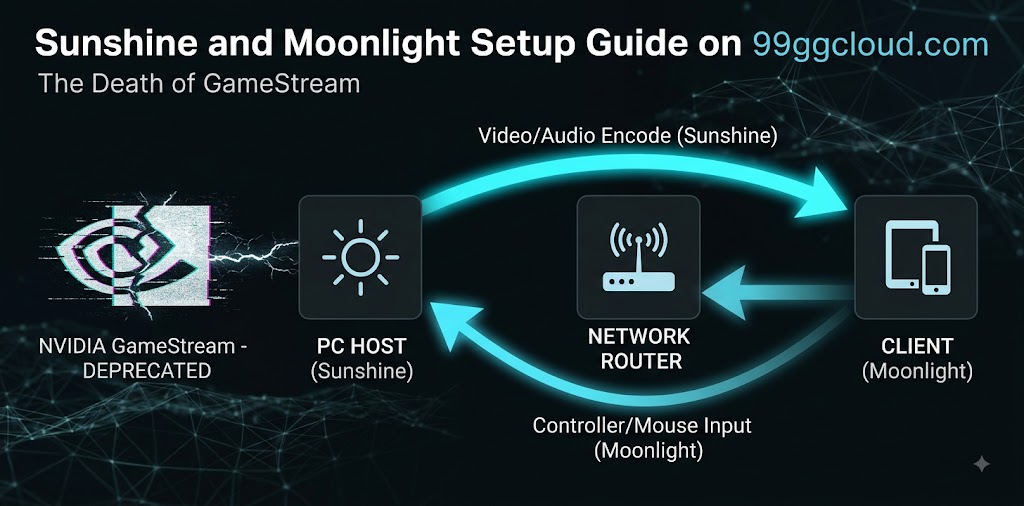
When NVIDIA officially deprecated GameStream, the self-hosted gaming community needed a robust replacement[cite: 293]. Sunshine and Moonlight rapidly emerged as the gold standard for creating a private cloud gaming server[cite: 294].
The architecture operates on a simple but highly efficient Host/Client model[cite: 295]:
- The Host (Sunshine): Captures your PC’s video output and encodes it in real-time[cite: 295].
- The Client (Moonlight): Receives the stream and decodes the video while sending your controller or mouse inputs back to the host[cite: 296].
Lab Note: If you are new to the concept of streaming games from a remote server, we recommend reviewing our foundational guide on Cloud Gaming[cite: 297].
2. Host Setup: Installing and Configuring Sunshine
To get started, download the latest Sunshine release directly from the official GitHub repository[cite: 298].
- Administrator Privileges: You must run the installer and the Sunshine service as an Administrator to ensure it can properly capture the screen and inject controller inputs[cite: 299].
- Game Management: Through the Sunshine Web UI, you can easily add specific games or entire launchers like Steam Big Picture and Playnite for a seamless console-like experience[cite: 300].
The Core Requirement: Hardware Encoding
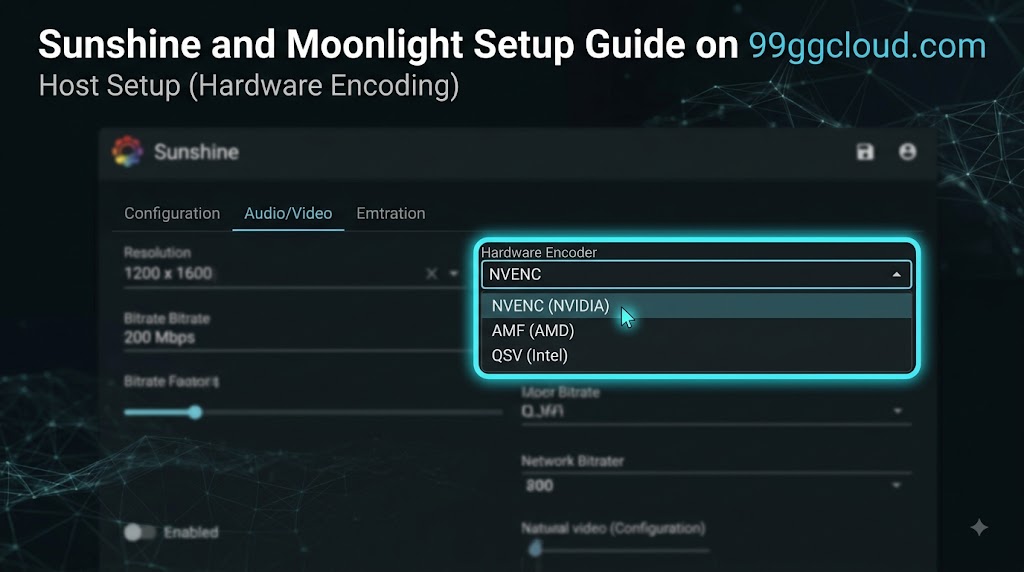
This is the most critical step for reducing latency[cite: 301]. You must force Sunshine to use hardware encoding rather than relying on your CPU (Software Encoding)[cite: 302]. Depending on your GPU, select the appropriate encoder in the Sunshine configuration[cite: 303]:
- NVIDIA GPUs: Select NVENC[cite: 303].
- AMD GPUs: Select AMF[cite: 304].
- Intel GPUs: Select QSV[cite: 304].
3. Client Setup: Optimizing Moonlight for Low Latency
Install Moonlight on your receiving device (laptop, tablet, or smart TV)[cite: 305]. To pair the devices locally, Moonlight will provide a PIN code that you must enter into the Sunshine Web UI on your Host PC[cite: 306].
Bandwidth allocation is heavily dependent on your target resolution and framerate[cite: 307]. Based on our internal lab testing, we recommend the following parameters to balance visual fidelity and decoding speed[cite: 308]:
| Resolution | FPS | Minimum Network Bandwidth | Recommended Bitrate |
|---|---|---|---|
| 1080p | 60 | 30 Mbps [cite: 310] | 10 – 20 Mbps [cite: 310] |
| 1440p | 60 | 50 Mbps [cite: 311] | 30 – 40 Mbps [cite: 311] |
| 4K | 60 | 100 Mbps [cite: 312] | 50 – 80 Mbps [cite: 312] |
| 4K | 120 | 150 Mbps [cite: 313] | 80 – 100+ Mbps [cite: 313] |
4. Secure Remote Access: Gaming Outside the LAN
Playing on your local network is straightforward, but accessing your Host PC from an external network requires routing[cite: 314]. We strongly advise against traditional Port Forwarding via your router due to the severe security risks of exposing your PC directly to the internet[cite: 315].
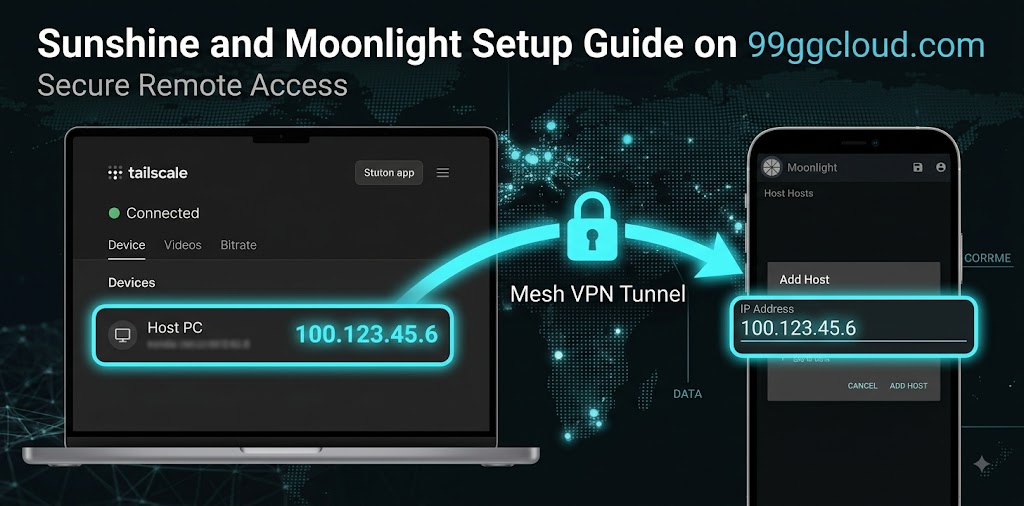
The optimal solution for secure remote access is deploying a Mesh VPN like Tailscale or ZeroTier[cite: 316].
- Deployment: Install Tailscale on your Host PC and your Moonlight Client device (phone, laptop, etc.)[cite: 317].
- Connection: Once both devices are authenticated on your Tailscale network, simply copy the Host PC’s Tailscale IP address and enter it manually into the Moonlight client[cite: 318].
5. Network Lab: Optimizing Jitter and Frame Pacing
Hardware encoding can only do so much; the physical transport layer dictates your final experience[cite: 319, 320].
- Hardwire the Host: Using an Ethernet connection for your Host PC is strictly mandatory[cite: 320]. Relying on Wi-Fi for the host introduces immediate packet loss and severe jitter spikes[cite: 321]. For hard data on this, read our lab report: Ethernet vs Wi-Fi for Cloud Gaming: Does It Reduce Lag?[cite: 322].
- V-Sync Configuration: To ensure smooth frame pacing without adding input delay, disable V-Sync inside the game settings on your Host PC[cite: 323]. Instead, enable V-Sync exclusively within the Moonlight client settings[cite: 324].
- Test Your Network: Before troubleshooting stream stutters, verify your baseline network stability[cite: 325]. Run a diagnostic using the 9GG CLOUD Readiness Tools to check your Ping and Jitter capacity[cite: 326].
Troubleshooting Common Issues
Cloud gaming relies on many systems; when problems occur, use these steps to isolate the bottleneck.
- Stuttering Stream / High Jitter: Verify the host is hardwired. On Wi-Fi clients, ensure you are on a 5GHz (or 6E) channel and close to the router.
- Input Delay feels high: Confirm hardware encoding (NVENC/AMF/QSV) is active on the Host (Sunshine logs). In Moonlight client, reduce the visual bitrate; excessive bitrate can overload the client decoder.
- Black Screen on connection: Confirm Administrator Privileges were granted to Sunshine. Update your GPU drivers. Ensure no existing overlays are conflicting.
Conclusion and Private Cloud Gaming FAQ
Building a low-latency, private cloud gaming stream with Sunshine and Moonlight replaces legacy proprietary solutions while maximizing security. Hardwiring your host is essential, and leveraging hardware acceleration on both host and client ensures ultra-responsive gameplay. For more advanced network lab reports and self-hosted game optimization, explore the rest of 9GG CLOUD.