

Moonlight decoding lag is usually a client-side decode bottleneck, an oversized bitrate, or a display pipeline that cannot keep up. Start by reading the performance overlay, then lower bitrate until decode and network metrics stabilize before changing anything else.
Quick verdict
Best first move
Open Moonlight’s performance overlay and reduce bitrate by 10–20%. If decode latency or frame drops improve, the stream was asking too much of the client or network path.
What not to assume
A fast internet plan does not guarantee low decoding latency. Advertised speed, Wi-Fi stability, codec support, client hardware, resolution, FPS, and display timing all matter.
How to fix Moonlight Decoding Lag depends on which number is rising. High decode latency points toward the client decoder or stream complexity. High network latency variance points toward bitrate, congestion, or Wi-Fi. High frame queue or render latency points toward the display and synchronization path.
This guide is for Moonlight sessions hosted on your own PC, commonly with Sunshine. It is also useful for streamers and developers testing a remote workstation. The troubleshooting sequence is based on Moonlight’s current documentation; it is not a claim of an independent hardware benchmark.
What Moonlight decoding lag actually means
Moonlight receives a compressed video frame, decodes it on the client, queues it for rendering, and presents it on a display. Lag can be added at any point in that chain. “Decoding lag” specifically means the client is taking too long to turn the received bitstream into a frame that can be rendered.
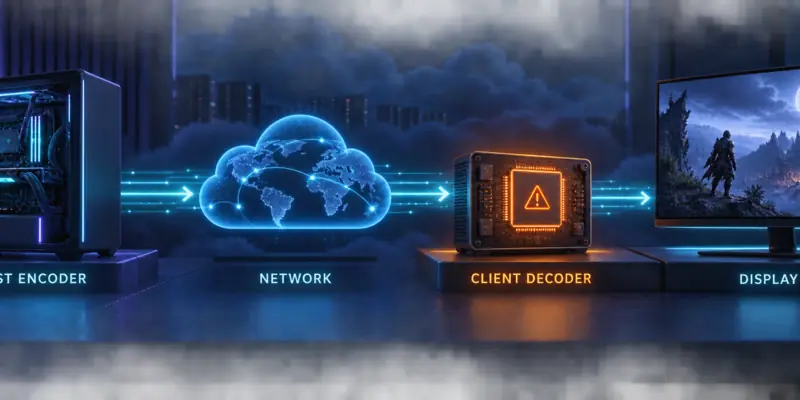
That distinction matters because lowering game graphics on the host may not fix a decoder that is overloaded on a TV, tablet, mini PC, laptop, or single-board computer. Likewise, buying a faster internet plan will not repair missing GPU drivers or a display pipeline waiting on V-Sync.
| Overlay symptom | Likely bottleneck | First action |
|---|---|---|
| Decode latency rises while network numbers stay calm | Client decoder, codec, resolution, FPS, or bitrate | Lower bitrate, then test a lower resolution or another supported codec |
| Network latency variance or network drops spike | Congestion, unstable Wi-Fi, or an overfilled link | Lower bitrate and move to Ethernet or a cleaner 5 GHz/6 GHz connection |
| Frame queue or render latency stays high | Display refresh, V-Sync, compositor, driver, or rendering path | Match refresh/FPS and test with V-Sync or display processing reduced |
| Host encoding latency is high | Host GPU load, encoder settings, or another app using the encoder | Reduce host load and close competing recording or streaming software |
Moonlight’s own FAQ explains that decode latency varies with client hardware, bitrate, frame rate, and resolution. It also warns that overlay values are not directly comparable with other streaming apps because measurement methods can differ. Treat the overlay as a diagnostic instrument for this session, not a universal score.
Measure before changing settings
Make one controlled change at a time. Start a game or a repeatable scene, wait for the stream to settle, and observe it for about a minute. A static desktop can produce different behavior from a fast game scene, especially with variable-frame-rate encoding, so test the workload that actually feels laggy.
- Enable the Moonlight performance overlay. On Moonlight PC, the official FAQ documents Ctrl + Alt + Shift + S; mobile clients expose the overlay in their settings.
- Record the selected resolution, FPS, bitrate, codec, client device, and connection type. Do not change all five variables at once.
- Watch decode latency, network latency, latency variance, frames dropped by network, frames dropped due to jitter, frame queue latency, and render latency when those fields are available.
- Lower bitrate by one step and repeat the same scene. If the numbers improve, keep the lower value and tune upward slowly until quality and responsiveness balance.
Use the overlay as a decision tree
If decode latency is the only outlier, prioritize client and stream settings. If variance and network drops move with bitrate, prioritize the path between host and client. If every network value looks healthy but the picture feels delayed, inspect display mode, V-Sync, refresh rate, and TV post-processing.
For a broader baseline, run the cloud gaming network readiness test and compare its findings with the Moonlight overlay. It cannot replace an in-session measurement, but it can reveal whether your access link has inconsistent latency or upload capacity.
Set Moonlight bitrate from real bandwidth
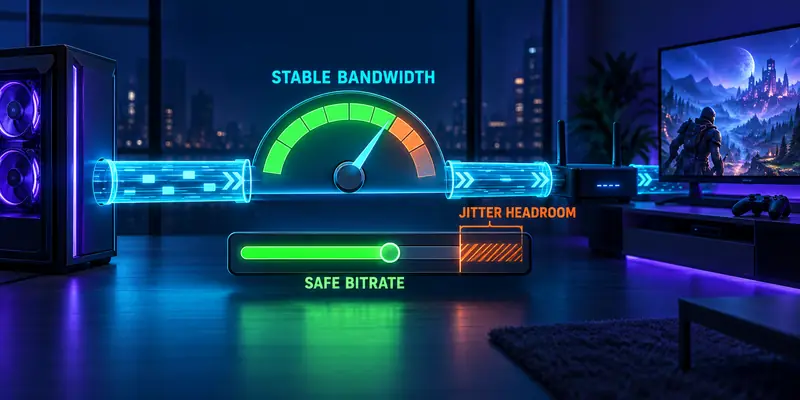
Bitrate is the amount of video data Moonlight sends each second. More bitrate can preserve detail in foliage, text, and fast camera movement, but it also increases the work required from the network path and, on some clients, the decoder. The correct target is the highest stable value—not the highest value your speed-test headline displays.
Use the bottleneck, not the fastest link
For a remote session, compare Moonlight’s bitrate with the host’s stable upload capacity and the client’s stable download capacity. The lower of those two is the ceiling. Moonlight’s official FAQ recommends choosing a remote bitrate at least 1 Mbps below the internet connection’s upload speed. That is a minimum margin, not a guarantee for a congested or wireless route.
For a starting rule, set bitrate below the measured bottleneck and leave additional headroom when the connection is shared or variable. A practical editorial starting point is roughly 80–90% of the lowest sustained throughput, then a downward adjustment if jitter or drops appear. Measure sustained throughput during the time you actually play; do not rely only on a provider’s advertised tier.
20 Mbps stable bottleneck
Begin around 16–18 Mbps. If network variance rises, step down to 14–16 Mbps before changing resolution.
100 Mbps stable bottleneck
Begin around 80–90 Mbps only if the client and route are stable. A gigabit plan does not make 4K high-bitrate streaming automatically safe.
Those examples are tuning starting points, not Moonlight specifications or independent measurements. A wired 100 Mbps path with a capable decoder can behave better than a much faster connection with bufferbloat or unstable Wi-Fi. If your setup is remote, the Moonlight FAQ is the source to consult for the current upstream-margin guidance.
If you want a deeper explanation of bitrate trade-offs, see our Moonlight bitrate optimization guide. This article focuses on decoding lag; that companion guide covers the wider quality-versus-bandwidth decision.
Fixes to try in the right order
1. Reduce bitrate before reducing everything else
Drop bitrate by 10–20%, reconnect, and repeat the same scene. This is the fastest way to test whether the client decoder or network path is being pushed too hard. If the stream becomes smooth, increase in small steps until you find the first unstable point, then step back one notch for headroom.
2. Match resolution and FPS to the client
4K60 is a much heavier decode and render target than 1080p60. If the client is a TV app, thin laptop, tablet, or small Linux box, test 1080p60 first. If that is stable, try 1440p or a higher frame rate one change at a time. Moonlight notes that 90 or 120 FPS can reduce decode latency on some devices, but higher FPS also increases the amount of work and bandwidth; test rather than assuming.
Keep the game output, Moonlight setting, and display refresh logically aligned. A client receiving 60 FPS for a 120 Hz display can still be playable, but mismatched pacing, V-Sync, or television processing may add a queue that feels like decoding lag.
3. Confirm hardware decoding is actually available
Update the client GPU driver from the device or GPU manufacturer. On Windows, Moonlight uses DXVA2 for hardware acceleration, and the official troubleshooting page identifies proper GPU drivers as a first check. Avoid testing through Remote Desktop, which can prevent the GPU from being usable for rendering.
On Linux, hardware acceleration depends on the installed stack, such as VAAPI, VDPAU, or NVDEC. Missing driver packages or differences between Flatpak, Snap, and AppImage builds can change decoder behavior. If one package does not accelerate correctly, test the supported package for your distribution and verify the overlay instead of trusting the install label. On GNOME Wayland, the Moonlight documentation also recommends trying the documented Wayland launch path and comparing with X11 if performance is poor.
For Raspberry Pi and other compact devices, decoder support and reserved GPU memory are more constrained. Follow the current device-specific instructions in Moonlight’s hardware decoding troubleshooting guide; do not copy a configuration intended for a different Pi model or operating system.
4. Test another supported codec
If one codec shows unusually high decode latency, a black screen, or intermittent stalls while another supported codec is smooth at the same resolution and FPS, keep the compatible option. Codec support is client-specific, and a newer codec is not automatically faster on older hardware. Record the result because host and client updates can change the outcome.
5. Stabilize the network path
- Use Ethernet on the host whenever possible.
- Use Ethernet or a clean 5 GHz/6 GHz connection on the client; avoid 2.4 GHz for latency-sensitive play when a better option is available.
- Pause large uploads, cloud backups, downloads, and live streams on the same connection.
- Check for bufferbloat if latency spikes only while the link is busy.
- Remove unnecessary VPN hops while testing, then add them back only if the route is still stable.
The official Moonlight troubleshooting guide specifically recommends lowering bitrate when video gets stuck and using the result to determine whether bandwidth is involved. It also lists hardware-accelerated GPU scheduling and encoder conflicts as host-side troubleshooting areas. Use the same scene after each change so you can separate a network fix from a coincidence.
6. Check the display and host encoder last
If Moonlight’s decode and network metrics are healthy but controls still feel delayed, disable extra TV image processing, enable the display’s game mode, and test V-Sync or frame pacing settings carefully. On the host, close competing recording or streaming applications and watch GPU utilization. Encoding delay and decoding delay are different stages; fixing one will not automatically fix the other.
For host encoder context, our NVENC vs. AMF vs. QSV latency comparison explains how encoder choice can affect the upstream portion of the pipeline. It should be read alongside—not substituted for—the client decoder checks in this guide.
Five-minute Moonlight decoding-lag checklist
- Enable the performance overlay and identify whether decode, network, queue, render, or encode latency is the outlier.
- Set bitrate below the lowest sustained host-upload/client-download bottleneck, with headroom for shared traffic.
- Lower bitrate by 10–20% and repeat the same game scene.
- If decode remains high, test 1080p60, then change FPS or codec one variable at a time.
- Verify GPU drivers and hardware decoding; do not diagnose through Remote Desktop.
- Prefer Ethernet and remove competing traffic, VPN hops, and Wi-Fi interference while testing.
- If network and decode metrics are fine, inspect V-Sync, refresh rate, game mode, and display processing.
When to stop tuning
Keep the first setting that is consistently smooth in the games you actually play. A slightly lower bitrate with stable frame delivery is usually a better experience than a sharper stream that creates decode spikes every few seconds.
FAQ
Why is Moonlight decoding lag high when my internet is fast?
Internet speed is only one part of the path. The client decoder, selected bitrate, resolution, FPS, codec, Wi-Fi stability, display queue, and GPU drivers can all add delay. Check the overlay to find the stage that is actually rising.
Does lowering Moonlight bitrate reduce decoding lag?
It can. Lower bitrate reduces data pressure and may reduce work for a constrained decoder, but it is not a universal fix. If frame queue or render latency is the outlier, adjust display and synchronization settings instead.
What bitrate should I use for remote Moonlight streaming?
Start below the lowest stable upload or download capacity on the route. For remote sessions, Moonlight’s FAQ recommends at least 1 Mbps below the host connection’s upload speed; add more headroom when the link is shared or inconsistent, then validate with the overlay.
How do I know whether Moonlight is using hardware decoding?
Check the client’s performance behavior and decoder information where the platform exposes it, then compare results after verifying GPU drivers and package support. A large decode-latency improvement after fixing the driver or changing to a supported client build is strong evidence that software decoding or an incompatible acceleration path was involved.
Methodology and disclosure
Official documentation: Moonlight’s FAQ, troubleshooting page, and hardware-decoding guide provide the definitions, overlay guidance, remote bitrate margin, and platform-specific checks linked above.
Editorial guidance: The 10–20% bitrate step and 80–90% sustained-throughput starting rule are practical tuning heuristics, not provider specifications or independent lab measurements. Results vary with route, congestion, hardware, codec, game workload, display, and operating system. No direct test was performed for a particular reader’s device in this article.