
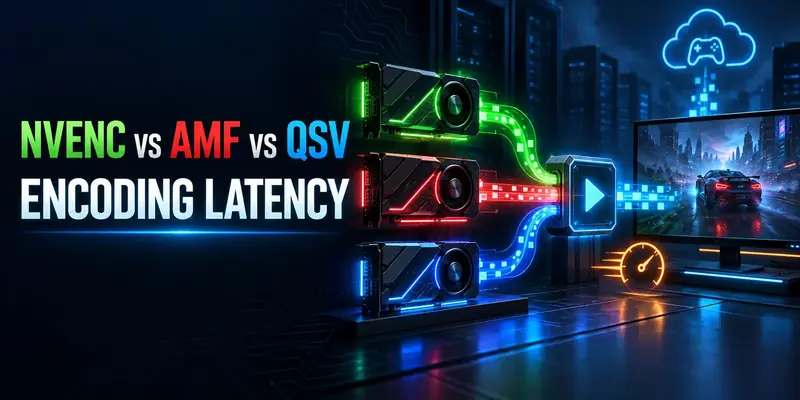
The short answer: there is no universal millisecond winner between NVENC, AMF, and QSV. The lowest real-world delay comes from the encoder your GPU supports cleanly, configured without look-ahead, unnecessary frame buffering, or CPU-to-GPU copies.
Quick verdict
NVENC vs AMF vs QSV Encoding Latency is best understood as a pipeline decision, not a simple brand ranking. NVENC is usually the easiest low-latency default on an NVIDIA host. AMF can be an excellent choice on a recent Radeon system when the capture path stays on the GPU. QSV is particularly useful on Intel integrated graphics and Arc systems, where the application can keep surfaces in the Intel video pipeline.
- Choose NVENC when you want predictable application support and a straightforward low-latency path on NVIDIA hardware.
- Choose AMF when Radeon is your primary gaming GPU and the driver, encoder, and application expose the low-latency controls you need.
- Choose QSV when Intel media hardware is available and you can use oneVPL or a well-supported QSV implementation with a shallow asynchronous queue.
- Do not call a winner from encoder names alone. Capture copies, B-frames, look-ahead, VBV buffering, network jitter, and client decode can outweigh the hardware engine.
What encoding latency actually means
In a self-hosted gaming setup, a frame is rendered, captured, copied or shared with the encoder, compressed, packetized, sent across the network, decoded, and displayed. “Encoding latency” is only the time spent turning a captured frame into an encoded packet. “End-to-end latency” includes every stage after the game produces the frame.
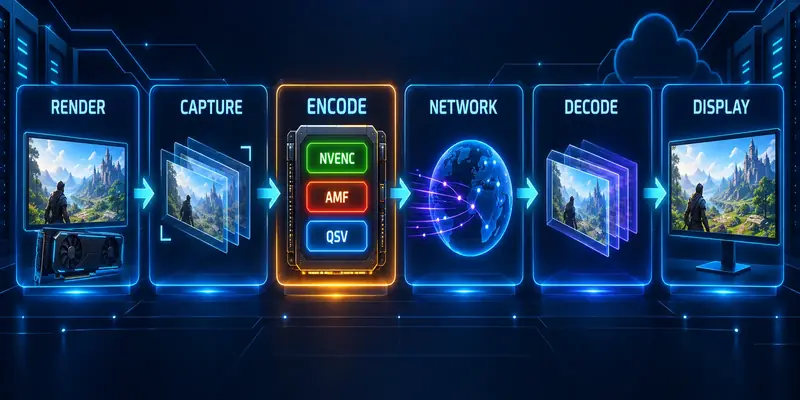
That distinction matters for game servers and cloud PCs. A server can have a fast encoder but still feel slow if the host is far from the player, Wi-Fi adds jitter, the streaming app queues frames, or the client display adds buffering. At 60 fps, one frame arrives every 16.7 ms, so a one- or two-frame queue is already visible even when the encoder itself is working correctly.
Encoder latency also differs from game-server tick rate and network ping. Tick rate describes how often the server simulation updates; ping describes round-trip network time; encoding latency describes video processing. They interact, but improving one does not automatically improve the others.
Read the number carefully
A vendor’s “low latency” mode is a configuration target, not a guaranteed end-to-end result. A fair comparison must keep codec, resolution, frame rate, bitrate, driver, application build, queue depth, capture method, and network path constant.
NVENC, AMF, and QSV at a glance
The table below summarizes documented controls and practical fit. It intentionally does not invent millisecond scores: no same-machine, same-driver, same-build head-to-head dataset was supplied for this draft.
| Encoder | Low-latency controls to look for | Best fit | Main limitation |
|---|---|---|---|
| NVENC | Low-latency or ultra-low-latency tuning, CBR, small VBV buffer, no frame reordering where appropriate | NVIDIA gaming PCs, streamers, and hosts prioritizing broad software support | Settings vary by GPU generation, codec, driver, and application wrapper |
| AMF | Low-latency encoder mode, ultra-low-latency usage, no unnecessary frame duplication or memory transfers | Radeon hosts, especially when capture and encode remain in the same GPU memory path | Application and driver integration can expose fewer controls or behave differently across systems |
| QSV | Async depth of 1 for a shallow pipeline, low-delay configuration, no B-frames when delay is the priority | Intel iGPU or Arc hosts, compact systems, and developer-controlled oneVPL pipelines | Results depend heavily on platform generation, runtime, driver, and whether surfaces leave GPU memory |
These are not equivalent preset names. “Low latency” in one API does not mean the same internal decisions as “ultra-low latency” in another. Compare the resulting timestamps and queue behavior, not the label in a dropdown.
How each encoder behaves
NVENC: the easiest low-latency baseline
NVIDIA’s Video Codec SDK exposes separate low-latency and ultra-low-latency tuning modes. Its guidance for interactive workloads such as game streaming includes CBR, a very small VBV buffer, and a long or effectively infinite GOP. The SDK also documents a choice between no B-frames and unidirectional B-frames, depending on the quality and compatibility trade-off.
For most streamers, NVENC’s practical advantage is not a guaranteed hardware lead; it is the maturity of the surrounding software ecosystem. OBS, FFmpeg, Sunshine, and many capture tools expose NVENC paths clearly. That makes it easier to remove look-ahead, reduce queue depth, and diagnose skipped or delayed frames.
Start with the low-latency tune, then measure. A slower quality preset, multi-pass analysis, look-ahead, or an oversized rate-control buffer can add delay even when the GPU encoder is otherwise idle.
AMF: capable, but integration quality matters
AMD’s Advanced Media Framework provides low-latency properties for AVC and HEVC encoders, and its AV1 documentation exposes a lowest-latency encoding mode. AMF guidance also highlights that low-latency capture and encode pipelines should avoid unnecessary frame duplication and synchronization work.
That makes AMF a sensible default on a Radeon host, especially when the game, capture source, and encoder share the same GPU context. The caveat is operational: a setting exposed by AMF may not appear in the same form in OBS, FFmpeg, or a game-streaming host. A working Radeon profile should therefore be validated through packet timestamps and perceived input-to-display delay.
When AMF feels inconsistent, inspect memory movement first. A path that copies frames through system memory can erase the benefit of a fast hardware block. Driver version and the exact Radeon generation also matter, so broad claims about “AMF latency” are weaker than a machine-specific test.
QSV: strong when the Intel media path stays shallow
Intel Quick Sync Video is exposed through Intel media APIs, with oneVPL serving as the modern programming route for current Intel accelerators. Intel’s low-delay examples use a shallow asynchronous pipeline, no B-frames, and a long GOP. In application terms, an async depth of 1 minimizes queued work at the cost of less throughput headroom.
QSV can be a very good fit for an Intel iGPU or Arc system because the media engine can work independently of the CPU’s main execution cores. It is also useful for small self-hosted machines that do not have a discrete NVIDIA or AMD GPU. However, QSV behavior is particularly sensitive to runtime selection, driver support, and whether an application falls back to system-memory surfaces.
If QSV is available alongside a discrete GPU, do not assume it is automatically faster. Choose the path that avoids extra copies and leaves enough thermal and scheduling headroom for the game, capture compositor, audio, and network stack.
What changes latency in practice
Frame buffering
B-frames, look-ahead, reference-frame analysis, and deep async queues can improve compression or throughput while adding waiting time. Interactive streaming usually prefers a shallow pipeline.
Memory transfers
GPU capture to GPU encode is usually the cleaner route. Readback to system memory, color conversion on the CPU, and a second upload introduce synchronization points that can become visible at high frame rates.
Rate control
CBR does not mean zero buffering. VBV size and initial occupancy determine how much data the encoder may hold before output is paced. Smaller buffers reduce delay but leave less room for bitrate spikes.
Workload pressure
A GPU running a game near its limit may delay capture or compositor work even if the dedicated encoder has capacity. Cap game FPS or reserve GPU headroom before blaming the codec.
Codec choice also changes the trade-off. H.264 remains the safest baseline for compatibility. HEVC can improve efficiency where the client supports it. AV1 can reduce bitrate at a similar quality target on supported hardware, but support, decode power, and application behavior must be checked on both host and client. The most efficient codec is not the best choice if it forces a software decode or an extra conversion step.
For network symptoms, use the cloud gaming network readiness test to separate route, jitter, and packet-loss problems from encoder problems. For a Sunshine and Moonlight host, the Sunshine and Moonlight setup guide covers the surrounding self-hosted path.
Low-latency settings to start with
Use these as a controlled starting profile, not as universal final values. Apply the same workload to all three encoders before drawing a conclusion.
- Lock the test format. Use the same resolution, frame rate, codec, bitrate, keyframe interval, color format, and capture source. H.264 at 1080p60 is a practical compatibility baseline.
- Remove intentional look-ahead. Disable look-ahead, multipass analysis, and quality tools that inspect future frames unless your target application explicitly needs them.
- Use a shallow frame path. Start with no B-frames. For NVENC, test unidirectional B-frames only if the application documents support and the measured delay remains acceptable.
- Set the vendor’s low-latency mode. In NVENC, use low-latency or ultra-low-latency tuning. In AMF, use the low-latency or ultra-low-latency usage exposed by the application. In QSV, use a low-delay profile and async depth 1 where available.
- Keep surfaces on the accelerator. Prefer GPU-native capture, scaling, and color conversion. If the log shows a CPU fallback or repeated upload/download, fix that before comparing encoder brands.
- Check the client. Confirm the decoder supports the chosen codec and that the playback app is not adding a large render queue. A host-side improvement is wasted if the client buffers several frames.
Bitrate is a separate control
A very low bitrate can make motion look delayed because frames are underspecified or network recovery takes longer. A very high bitrate can cause queue growth and packet loss. If you need to tune Moonlight specifically, start with 9GG CLOUD’s Moonlight bitrate guide, then recheck end-to-end latency after every change.
How to measure the result correctly
Do not use GPU utilization, encode FPS, or a streamer’s “it feels faster” comment as a latency measurement. Those metrics can explain a problem, but they do not measure the time from an on-screen event to the displayed result.
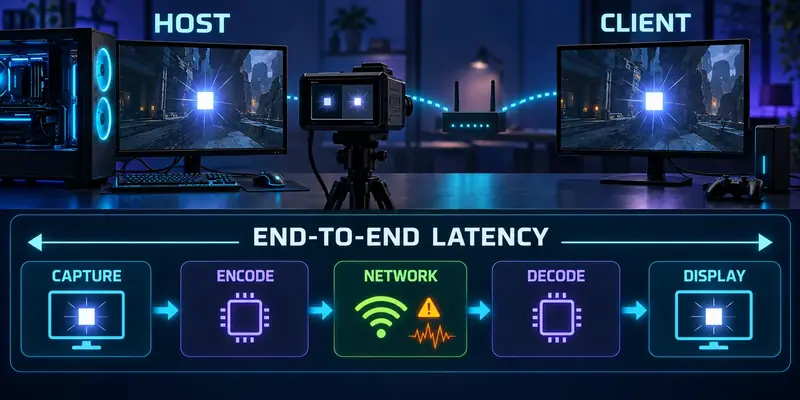
- Measure encoder-stage delay. Timestamp the frame at capture submission and again when the encoded packet becomes available. Repeat across a representative game scene and report median plus high-percentile delay.
- Measure end-to-end delay. Put a visible flash, counter, or LED in the host scene and record the host and client displays with a high-speed camera. This captures capture, encode, transport, decode, and display queues together.
- Repeat under load. Test idle desktop, normal gameplay, GPU-heavy gameplay, and a worst-case network route. Record driver, OS, application build, resolution, codec, bitrate, frame rate, and server region.
- Watch for dropped or repeated frames. A stream can show a low average delay while stuttering during spikes. Log render lag, encoder lag, network drops, jitter, and client decode timing separately.
- Compare like with like. Change one variable at a time. A new driver, different preset, new capture API, or different client can move the result more than switching NVENC to AMF or QSV.
Disclosure for this guide
This article is an evidence-led configuration guide, not a claim that 9GG CLOUD directly benchmarked three GPUs. The draft contains no fabricated millisecond leaderboard. A publish-ready comparison should add the lab’s hardware, test software, sample count, and raw timestamp method.
Which encoder should you use?
Start with NVENC
It is the lowest-friction route for OBS and common game-streaming tools. Prioritize a clean capture path and enough GPU headroom over chasing a nominal preset label.
Start with AMF
Use the AMD path when it is fully supported by your application and the frames stay in the Radeon pipeline. Validate driver and client behavior with a repeatable test.
Start with QSV
QSV is a strong option for Intel iGPU and Arc systems, especially in compact self-hosted PCs. Keep async depth and memory movement under control.
Choose the shortest path
If multiple encoders are available, pick the one that avoids copies, keeps the client compatible, and preserves headroom for the game. Then verify with end-to-end measurements.
For most readers, the practical recommendation is simple: use the native encoder on the primary gaming GPU, choose the application’s low-latency mode, disable future-frame analysis, and test the full route. If your server is otherwise well tuned, that approach is more reliable than buying hardware solely because one encoder is said to be “the fastest.”
FAQ
Is NVENC always lower latency than AMF or QSV?
No. NVENC is often the easiest to configure and troubleshoot, but actual latency depends on the GPU generation, driver, capture API, queue depth, codec, and client. A clean AMF or QSV path can beat a poorly configured NVENC path.
Should I use AV1 for the lowest latency?
Not automatically. AV1 may improve bitrate efficiency on supported hardware, but the host and client must both support it efficiently. For a first latency comparison, use H.264 as the common baseline, then test HEVC or AV1 separately.
Does CBR remove streaming delay?
No. CBR helps make bandwidth behavior predictable, but VBV size, initial occupancy, frame reordering, transport buffering, and client rendering still affect delay. CBR is one part of a low-latency profile.
What is the best encoder for a self-hosted game server?
Use the hardware encoder attached to the machine that renders the game, provided the streaming application supports it cleanly. For a dedicated game server that does not render video, encoder choice is irrelevant; it belongs on the cloud PC or streaming host.
Sources and methodology notes
Configuration guidance was checked against the NVIDIA NVENC Video Encoder API Programming Guide, the AMD AMF low-latency guidance, Intel’s oneVPL low-delay examples, and OBS’s hardware encoding documentation. These sources describe supported controls and implementation guidance; they do not establish a universal cross-vendor millisecond ranking.
Before publishing, an editor should confirm the final OBS or FFmpeg option names on the target OS, verify client codec support, and add independent measurements if the article is to be presented as a benchmark rather than a guide.