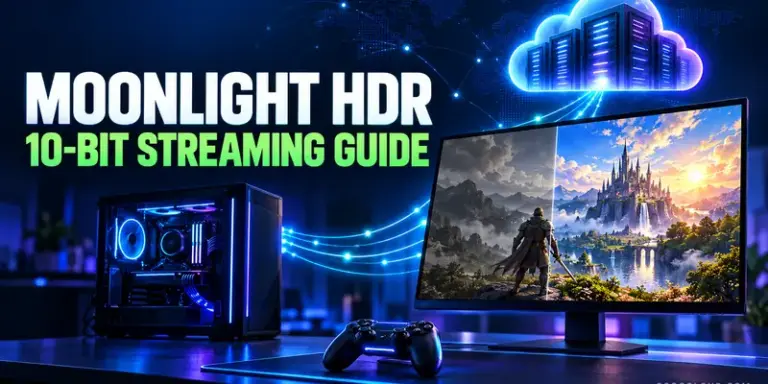

A reliable Moonlight HDR setup guide starts with the entire video path: the host must capture HDR, Sunshine must encode a 10-bit stream, Moonlight must decode it, and the client display must actually be in HDR mode. If any link falls back to SDR or applies the wrong tone mapping, the image can look pale, clipped, or over-saturated. Use the checklist below to configure the path and run a controlled HDR-on versus HDR-off latency comparison. No benchmark result is claimed here; latency depends on your host, client, display, codec, resolution, and network.
What HDR streaming needs
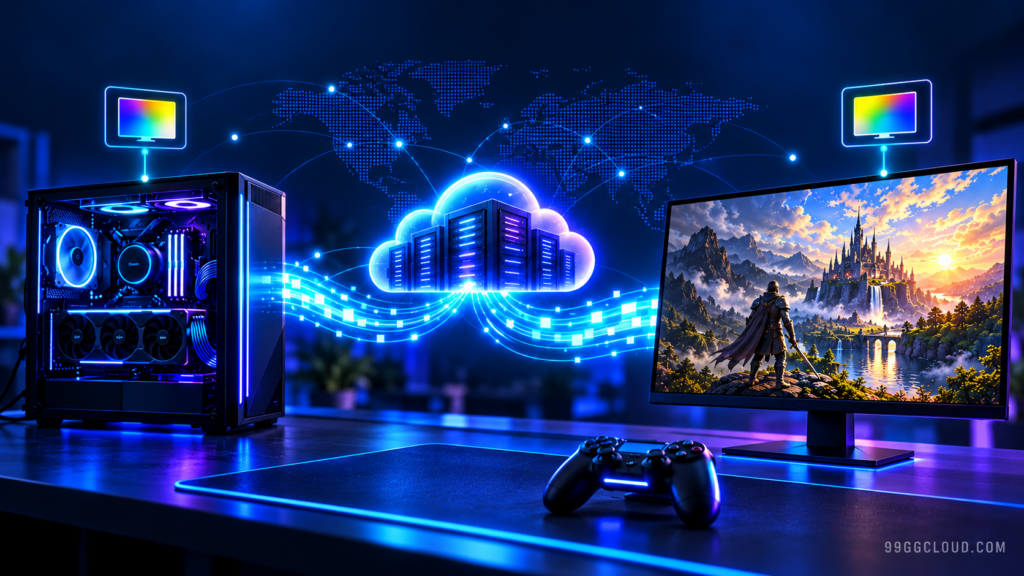
Sunshine’s current setup documentation describes Windows HDR streaming for GPUs that can encode HEVC Main 10 or AV1 10-bit profiles. The Moonlight client also needs a compatible hardware decoder and an HDR-capable output. On a Windows client, HDR must be enabled in Windows for windowed streaming. Linux host support has additional requirements and remains more configuration-dependent: the documentation calls for VAAPI-capable Intel or AMD encoding, KMS capture, and an HDR-capable compositor such as Gamescope or KDE Plasma 6. Check the official Sunshine HDR setup requirements for the platform you use.
HDR streaming is not simply “more color.” The source uses a wider color space and a different transfer function. The host game, capture path, encoded bit depth, client renderer, operating system, and display all need to agree about how that signal is represented. A 10-bit-capable encoder alone cannot make an SDR monitor show HDR correctly.
Configure the host and client
1. Prepare the host display path
- Update Sunshine and the GPU driver from their official sources, then restart the host. Record the versions so an A/B test can be repeated.
- In the host operating system, enable HDR on the display Sunshine captures. If the PC is headless, use an HDR-capable display or a suitable EDID emulator; confirm that Windows or the Linux desktop reports an HDR display before launching the game.
- Start a game with native HDR support and verify that its HDR option is available. Some games only expose HDR when the operating system detects a compatible display.
- For a Linux host, verify the documented capture backend, encoder path, and compositor requirements before troubleshooting colors. A working SDR stream does not prove the HDR capture path is active.
For headless systems, see our verified HDMI dummy plug and headless server setup guide. The emulator must report the display capabilities your game and host actually need; a basic SDR display profile will not create HDR support.
2. Enable HDR through Moonlight
- On the client, confirm that the display is HDR-capable and that HDR is enabled in the operating system. On Windows, enable HDR in Display settings before testing windowed or borderless streaming.
- Open Moonlight’s streaming settings and enable HDR. Use a codec and stream mode that your particular client supports for HDR; verify the active stream in client logs or status information instead of assuming the checkbox guarantees an HDR signal.
- Start at the client display’s native resolution and a frame rate both ends can sustain. Moonlight’s setup documentation warns that mismatched host and stream resolutions can produce scaling artifacts with HDR.
- Calibrate the client display in its operating system. Sunshine recommends streaming the Windows HDR Calibration app to the client and saving a profile. Then revisit the game’s HDR brightness or paper-white controls because host and client displays can have different peak brightness.
Moonlight’s official HDR requirements and known issues are platform-specific. If the HDR option is missing or disabled, check the client’s display, decoder, operating system, and Moonlight version before changing advanced settings.
Fix washed-out or incorrect HDR colors
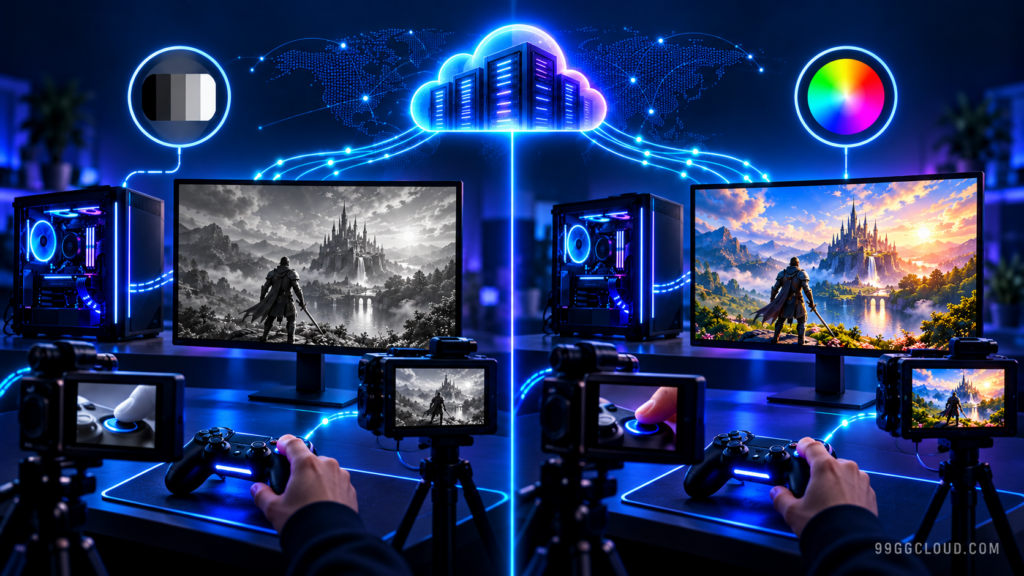
For a Moonlight HDR washed out fix, diagnose the signal path before adjusting saturation or gamma. Changing picture sliders can mask a range or tone-mapping mismatch and make a second display look worse.
- Confirm HDR is enabled on the client display. HDR passthrough on a display that is still operating in SDR can look wrong. On Windows, test both fullscreen and windowed behavior and turn system HDR on before connecting.
- Toggle host HDR and reconnect. Moonlight’s setup guide documents cases where HDR already enabled on the host may need to be toggled off and back on for a stream to enter HDR correctly. Disconnect and reconnect after changing the host mode.
- Match resolution and refresh mode. Use the host display’s resolution where practical, and avoid introducing scaling while diagnosing. Temporarily disable overlays, capture hooks, or display filters that may alter the video path.
- Check client renderer, OS, and logs. HDR bugs can be renderer- or platform-specific. The Moonlight project has documented issue reports involving washed-out HDR on particular systems; they are evidence of possible failure modes, not universal fixes. Update to a release containing a relevant fix and compare another supported client if available.
- Recalibrate the game for the client display. Adjust black level, peak brightness, and paper white through the OS calibration utility and in-game HDR controls. Do not compensate for a bad handshake by pushing saturation globally.
If the stream still looks wrong, capture a screenshot or log from both ends and note the host/client OS, GPU, driver, Sunshine and Moonlight versions, codec, display mode, and whether Windows HDR is enabled on each PC. That information makes a reproducible bug report far more useful than “HDR looks washed out.”
Run an HDR streaming latency A/B test
HDR may change the encode, decode, display, or rendering workload, but there is no universal latency penalty. Compare the same machine and route under controlled conditions. Our Moonlight latency test guide covers measurement concepts; use the following paired procedure for this HDR comparison.
- Fix the test conditions. Keep the game scene, host/client, network connection, resolution, frame rate, codec, bitrate, Moonlight vsync/frame-pacing options, and display refresh rate constant. Prefer wired Ethernet for a clean baseline. Close downloads and other variable workloads.
- Warm up both modes. Let the stream run for a few minutes after each mode change. Record a baseline with HDR disabled in Moonlight and the game/host configured for SDR. Then enable HDR on the host, client OS, Moonlight, and game as applicable. Restart the stream after changing modes.
- Measure the same event repeatedly. Use a high-speed camera to film a physical input (such as a mouse click or controller button) and the corresponding on-screen response, or use a consistent end-to-end latency tool. Repeat enough trials to compare a median and spread, not one best-looking result. Keep the camera position and capture method fixed.
- Separate latency components. If Moonlight exposes frame timing or statistics, log network latency, frames dropped, decode time, and frame rate alongside the end-to-end measurement. A stable network reading does not include every encode, decode, display-scanout, or input component.
- Alternate the order. Run SDR, HDR, then SDR again (or reverse the order on a second session). This helps reveal background load or thermal drift that could be mistaken for an HDR effect. Save logs and write down every setting.
Report the result as a measured difference for that exact configuration, including the measurement method and trial count. Do not attribute a few milliseconds to HDR if bitrate, refresh rate, V-sync, or scene load also changed. If the numbers fluctuate widely, investigate frame pacing and network variation before drawing a conclusion. For broader stream diagnosis, use our step-by-step Moonlight latency measurement workflow.
Quick troubleshooting order
- Verify HDR capability and OS-level HDR status on both ends.
- Confirm the host captures a real HDR display profile and the game is outputting HDR.
- Confirm Moonlight HDR is enabled and the client decoder/render path supports it.
- Match resolution and refresh rate, then reconnect after mode changes.
- Calibrate the client display and game brightness after the signal is correct.
- Compare HDR-off and HDR-on latency with all other variables fixed.
This workflow should identify whether the problem is capability, handshake, calibration, or performance. If you publish your own benchmark, include the complete host/client configuration and raw measurements so readers can judge whether the result applies to their setup.