
A Moonlight latency test can show where streaming delay accumulates, but no setting can guarantee literal zero input lag. Use the statistics overlay to separate network, decode, frame-queue, and rendering symptoms, then change one variable at a time and repeat the same test.
Quick verdict
For Moonlight Latency Test: How to Achieve Zero Input Lag, the accurate goal is lower and more consistent end-to-end latency. Moonlight’s overlay helps diagnose the streaming path, but it does not measure every millisecond from your button press to the display pixel. A wired host, a stable client connection, a bitrate your network can sustain, and hardware decoding are sensible starting points; measure before and after changing them.
- Best first move: record the overlay during a repeatable scene before changing settings.
- Optimize: the component that actually spikes, such as network variance, decode time, or frame queue.
- Important limit: this is a test plan, not a report of hands-on results for a particular PC, route, or client.
Can Moonlight reach zero input lag?
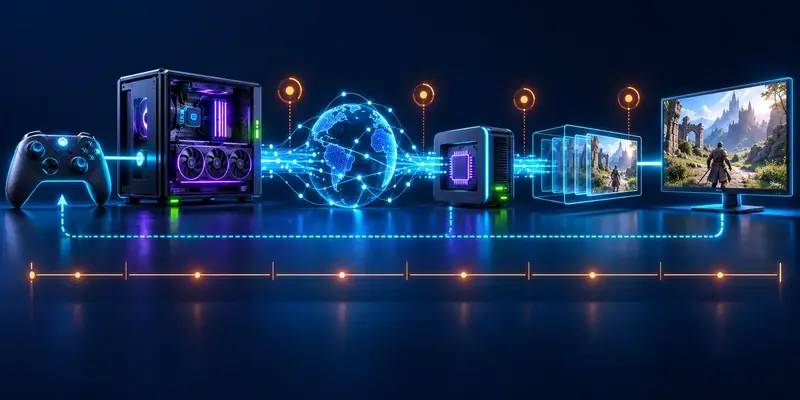
No. Literal zero end-to-end input lag is not a realistic target for a real streaming setup. A controller or mouse must send an input, the host game must process it, the host must capture and encode a frame, the network must carry it, and the client must decode and display it. Each stage takes time; the display refresh cycle can add further waiting.
Latency tuning still matters. The practical target is a responsive stream with low, stable delay and no recurring network or frame-pacing spikes. A result on a nearby wired network may not carry over to a distant host, a congested Wi-Fi channel, or a different client device.
Searches for Moonlight Latency Test: How to Achieve Zero Input Lag often mix network ping with total click-to-photon latency. Those are different measurements. Moonlight’s FAQ notes that client statistics do not capture every system delay, including input-device, compositor, and display latency; it recommends external measurement hardware for the most complete end-to-end result. See Moonlight’s explanation of its statistics.
What do Moonlight’s latency statistics mean?
The overlay is a diagnostic view, not a single universal “lag” score. Names and available fields can differ by client platform and app version, so compare like with like and consult current Moonlight documentation for your device.
| Overlay field | What it helps diagnose | What it does not prove |
|---|---|---|
| Network latency or receive timing | Delay or variation while stream data travels between host and client; labels vary by platform. | It is not automatically full button-to-photon time. |
| Network variance or jitter | Uneven packet timing that can cause late frames or stutter. | A low average does not rule out short spikes. |
| Decode latency | Time for the client to make a received frame ready to render. | It does not isolate network or display delay. |
| Frame queue and render latency | Waiting after decode and time spent presenting a frame, including synchronization effects. | They do not measure controller polling or every display response delay. |
| Dropped frames | Frames that fail to arrive or arrive too early or late for smooth presentation. | Zero drops alone does not mean zero latency. |
Moonlight’s FAQ documents Ctrl + Alt + Shift + S to show the statistics overlay on Windows and macOS. On Android and iOS, enable the overlay in Moonlight settings. Other clients may differ. The documentation also warns that not every client exposes every statistic and that values should not be compared across unrelated streaming clients.
How do you run a repeatable Moonlight latency test?
Keep the game, scene, resolution, frame-rate target, codec, client, display mode, and network path constant while establishing a baseline. Record host and client hardware, wired or wireless status, host location, stream settings, Moonlight version, and test date. Without that context, a latency number is hard to reproduce or compare.
- Stabilize the setup. Pause downloads, background uploads, and cloud sync. Let the host and client settle into normal operation. Do not run a speed test during the baseline capture.
- Choose a repeatable scene. Use the same game area and repeat the same input sequence. Avoid comparing a static menu with fast camera movement.
- Capture a baseline. Start a Moonlight session, enable the overlay, and record several minutes of ordinary play. Note available latency, variance, decode, queue, render, frame-rate, and dropped-frame fields.
- Separate idle and loaded runs. First measure while the network is quiet. Then repeat while another device performs a realistic upload or download. Label the runs separately.
- Repeat the capture. Perform at least three comparable runs after reconnecting. Report the median and, where logging permits, a high-percentile or worst-run result. This is a recommended method, not a claim that we ran the tests.
- Change one variable. For example, lower stream bitrate or resolution, move the client from Wi-Fi to Ethernet, or enable hardware decoding. Repeat the same scene and compare the same fields.
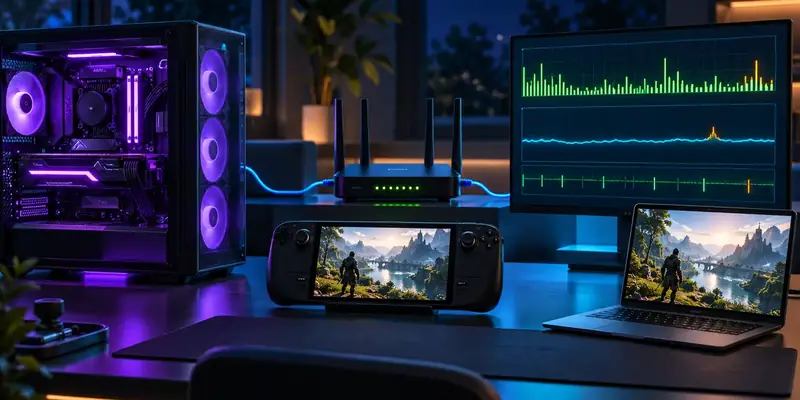
A basic ping to the host can reveal route instability, but it does not reproduce Moonlight’s encoded video traffic or measure the full input-to-display chain. For loaded latency, use a bufferbloat test under controlled conditions, then confirm any suspected improvement in Moonlight itself. Our bufferbloat test guide for game streaming explains why loaded latency matters.
How should you interpret the results?
Look for the field that changes alongside the symptom. If network variance and network-related drops rise during another device’s upload, investigate congestion or queueing before changing the host GPU. If network fields stay steady while decode time rises, investigate client decoding, stream resolution, codec support, or client load.
If queue or render delay stands out, check frame pacing, display refresh behavior, synchronization settings, and whether the client can keep up with the stream rate. If the overlay looks stable but controls still feel delayed, the missing part may be input-device, game-engine, host-capture, compositor, or display latency. The overlay cannot attribute every stage.
Do not use a single best run as the conclusion. Compare the median and the high-percentile or worst run under matching conditions. For interactive play, consistent timing can feel better than a lower average with frequent spikes. Keep screenshots or logs with the settings so you can undo a change that worsens the result.
How do you reduce the delay you measured?
Start with the network path
Where practical, connect the gaming host to the router over Ethernet and test the client on Ethernet or a clean 5 GHz Wi-Fi connection. Moonlight’s troubleshooting guide recommends a wired host and 5 GHz Wi-Fi or Ethernet for a laggy stream; it also suggests lowering bitrate to check whether the connection can sustain the selected stream. These are troubleshooting starting points, not a guarantee for every home.
Reduce bitrate only as far as needed to stop variance or network drops, then check image quality and repeat the test. If delay appears mainly during uploads, test router queue management and competing traffic. Our guides to diagnosing high network jitter and reducing cloud gaming latency cover the broader network path.
Check host and client processing
Use a resolution and frame-rate target the host can capture and encode and the client can decode and render consistently. Confirm hardware video encoding and decoding are active where supported, update drivers from the device or GPU vendor, and close competing recorders or overlays while diagnosing. A faster network cannot fix an overloaded client decoder.
Match the stream frame rate to a mode the display can present reliably. Test Moonlight’s frame-pacing options rather than assuming the smoothest setting also has the least delay: buffering can smooth timing variation but may add waiting. Change one option at a time, keeping the setting that improves measured consistency without adding dropped frames or judder.
For a true click-to-photon measurement
Use an external method that observes both the input event and the resulting display change, such as a high-speed camera or compatible latency measurement hardware. NVIDIA describes PC-latency tools and Reflex Analyzer for supported devices and games, but those tools measure only the portions their hardware and software support. Do not present an overlay reading as a complete click-to-photon result.
What does this guide establish?
This article provides a repeatable Moonlight latency-test workflow and optimization sequence. No test PC, client device, geographic route, capture logs, or independent measurements were supplied, so it reports no measured latency, jitter, packet-loss, or FPS result. Real results depend on the game, host and client hardware, route, congestion, codec, stream settings, and display.
For platform-specific field definitions and troubleshooting, consult the Moonlight FAQ and its official troubleshooting guide. For the broader latency pipeline and measurement approaches, see NVIDIA’s PC latency measurement overview.
Bottom line: “zero input lag” is a search phrase, not a realistic guarantee. Use the overlay to find the slow stage, change one variable, and verify the improvement with repeatable runs. External end-to-end measurement is needed for parts of the path Moonlight does not expose.