

Reduce Input Lag in Cloud Gaming with Smarter Remote Power Management
Remote power management cannot make packets reach a cloud server faster. It can keep a personal cloud-gaming host reachable, awake when you need it, and recoverable after a failure—so you can spend your time correcting the latency factors that actually affect play.
What remote power management can—and cannot—do
Reduce Input Lag in Cloud Gaming is a search for responsiveness. Input lag is an end-to-end path: your controller or mouse, the uplink, the game host, rendering and encoding, the return route, decoding, and the display. Turning a remote PC on or off does not shorten that path or improve the route to a public cloud service.
Remote power control is valuable when you operate a personal cloud PC, remote gaming desktop, capture system, or development box. If that host sleeps unexpectedly, freezes after a driver issue, or cannot be awakened without someone at home, a normal gaming session becomes an availability problem.
Quick verdict
Use remote power as an availability and recovery layer. Use route measurement, a stable local link, and sensible streaming settings to improve responsiveness. Treat a hard power cycle as last-resort recovery, not a routine “lag fix.”
NVIDIA’s official guidance for streamed gaming emphasizes a stable connection with low latency, jitter, and packet loss. Its app network test assesses the path to its data centers, which is more useful than a generic nearby-server speed test. See NVIDIA’s GeForce NOW lag and streaming-quality guidance.
Build a remote-power chain before you need it
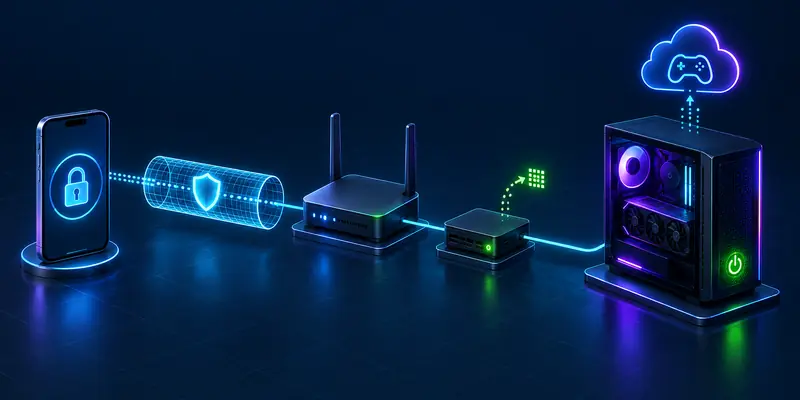
A dependable design has a normal path and a recovery path. The normal path is usually Wake-on-LAN (WoL): a compatible wired network adapter receives a magic packet and wakes the PC from a supported low-power state. The recovery path is separate out-of-band control for the rare moment when the operating system or remote-access software no longer responds.
Wire the host to Ethernet first. Wi-Fi wake can work, but adapter support, roaming, and router behavior differ widely. Microsoft documents that wake behavior depends on the network adapter, firmware, and Windows power state. Do not assume a PC can wake from a complete shutdown just because it wakes from sleep.
- Record the host’s wired adapter, router, BIOS/UEFI wake setting, and supported low-power states.
- Enable WoL in firmware and in the adapter’s power-management settings, then prove a local wake before trying remote wake.
- Use an authenticated route to a trusted device or service on the home network that can send the wake request.
- Confirm that the host receives an address, starts the streaming stack, and is reachable without opening broad inbound ports.
- Write down the one safe recovery action for a hard lock and test it during maintenance, not minutes before a live stream.
Use our verified Wake-on-LAN setup guide for a remote gaming PC for the validation sequence. Microsoft’s Wake-on-LAN behavior documentation explains why supported states must be tested on the actual host.
Select safe power states and recovery tools
| State or tool | Best use | Limitation |
|---|---|---|
| Host left on | Frequent streaming, builds, or remote play | Uses more power and still needs failure recovery |
| Sleep plus WoL | Regular access after local wake is proven | Depends on firmware, adapter, and sleep state |
| Shutdown plus WoL | Only after testing the exact PC configuration | May not wake; Fast Startup can affect behavior |
| Out-of-band power control | Hard-hang recovery when in-band tools fail | Abrupt loss of power can corrupt work or updates |
A smart plug is not the same as a remote power button. Cutting mains power from a running PC can interrupt a capture, file transfer, operating-system update, or filesystem write. If you use a controllable outlet as a failsafe, understand the risk, configure any “restore after AC power loss” firmware option deliberately, and test the whole sequence physically.
Before leaving home, save work, avoid pending updates, and confirm the host will not sleep in mid-session. Microsoft notes that a remote PC must be powered on and network-connected for remote access; it recommends Network Level Authentication for Remote Desktop when applicable.
Fix actual input lag in the right order

Once the host is consistently reachable, measure before you tune. Test when the cloud provider or personal host is available and while the household network is under normal load. A speed test to a nearby server can look excellent while the route to the game service is congested.
- Run the cloud service’s own network test where available and record its latency, jitter, and packet-loss warnings.
- Prefer Ethernet from client to router. If Wi-Fi is unavoidable, use a clean 5 GHz or 6 GHz connection close to the access point and avoid unnecessary mesh hops.
- Pause or schedule heavy uploads, cloud backups, and downloads. Uplink saturation and bufferbloat can delay input despite high downstream bandwidth.
- Choose the nearest viable server region. Test another region only when the current route is unstable or congested.
- Lower resolution or bitrate only after checking the route. That can help a weak decoder, but cannot repair packet loss or a poor path.
- Check display game mode and controller connection. A high-latency TV mode, Bluetooth interference, or a peripheral issue can mimic cloud latency.
Our Cloud Gaming Network Readiness Test covers provider-edge measurement, Wi-Fi checks, and bufferbloat troubleshooting. It complements power management: one makes the host available, while the other finds delay in the interactive path.
Do not call a power cycle a performance optimization unless a specific repeatable fault is present, such as a stuck host process or failed network adapter. If rebooting seems to help, investigate driver state, thermals, background load, router behavior, or a service outage.
Secure the remote-power workflow
Remote power can bring an unattended machine online, so protect it like remote desktop access. Do not expose an unprotected management page or a raw remote-desktop port to the public internet simply to send a wake command.
- Use a trusted authenticated remote-access method, such as a correctly configured VPN or mesh network, for management traffic.
- Use unique strong credentials and multi-factor authentication where supported.
- Restrict remote-control accounts to people who genuinely need access.
- Keep the router, host OS, remote-access tool, and streaming client updated.
- Test normal wake, reconnect, and recovery from outside the home network.
- Keep emergency recovery separate from routine startup so a mistaken tap cannot cut power mid-session.
For streamers and developers, the result is operational: a repeatable route from “host asleep” to “session ready,” plus a clear fallback for a hang. For users of public cloud-gaming services without a personal host, concentrate on client power settings, local-network stability, and the provider’s network test—remote PC power control does not operate the provider’s data-center hardware.
The bottom line
Reduce Input Lag in Cloud Gaming by measuring and improving the interactive route—not by expecting a smart plug to accelerate the internet. Use remote power management to make a personal host dependable: wired wake where supported, authenticated control, conservative recovery, and a tested runbook. Then focus on network, encode, decode, and display issues that decide how responsive a game feels.
This is documentation-based guidance, not an independent performance test. Wake behavior and streaming responsiveness vary with hardware, firmware, local-network design, provider region, route congestion, codec, and game workload.