
A practical, source-backed guide to making a headless Cloud PC expose a usable GPU display for remote gaming, streaming, creative work, and development.
Quick verdict
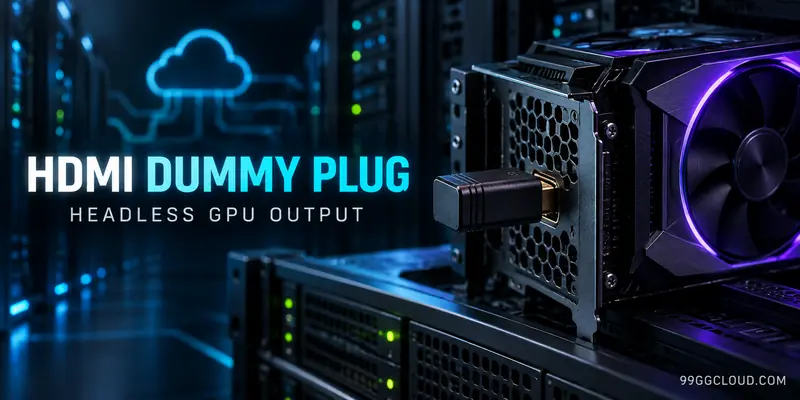
HDMI Dummy Plug Headless Server Setup is a simple way to present an EDID-backed “monitor” to a physical GPU when a Cloud PC runs without a real screen. That can unlock more predictable resolutions and help applications, encoders, and remote-control tools use the intended graphics adapter.
- Use a dummy plug when the GPU output is inactive, the remote session exposes the wrong display, or your target resolution is missing.
- Plug it into the dedicated GPU output, not the motherboard video port, and verify the resulting display inside Windows.
- Do not treat it as a latency fix. It changes display detection; it does not shorten the network route between you and the Cloud PC.
- Compatibility depends on the GPU port, emulator EDID, driver, operating system, remote client, and application.
What an HDMI dummy plug actually does
A graphics card normally checks whether a display is attached before it exposes display modes. A real monitor sends identification and capability data through EDID, including its identity and supported timings. Microsoft documents EDID as the metadata a monitor uses to communicate its capabilities to a video source such as a graphics card.
An HDMI dummy plug is a small display emulator. It does not show a picture and it does not make a remote session faster. Its job is to answer the GPU’s display-detection handshake with a stored EDID profile, so Windows and the graphics driver can enumerate a display even though no physical panel is connected.
That distinction matters on a headless Cloud PC. Some applications behave differently when Windows reports no active monitor, a remote display adapter is selected, or only a basic rendering path is available. With a valid virtual display present, you can often select a normal resolution, choose a refresh rate offered by the emulator, and keep a consistent desktop layout after reconnecting.
Important: a dummy plug “forces” display output detection; it does not force every game, encoder, or remote protocol to use the discrete GPU. Adapter selection and hardware acceleration still need to be checked separately.
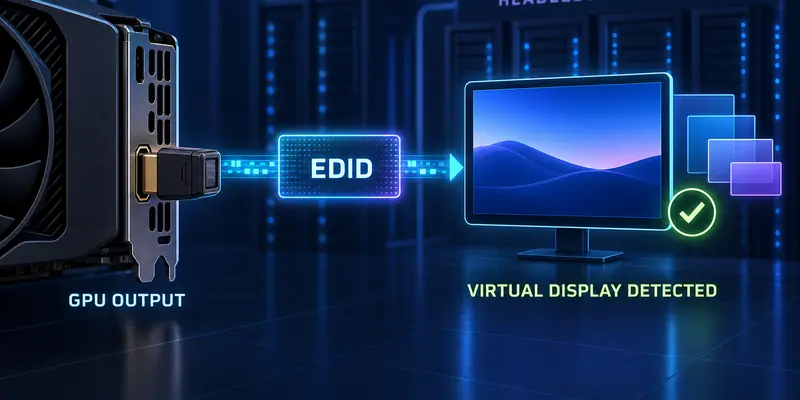
When a headless Cloud PC needs one
This setup is most useful when your Cloud PC has a physical or passed-through GPU but no monitor connected to its video output. Typical symptoms include a very limited resolution list, a desktop that changes size between sessions, a capture or streaming tool that cannot find the intended display, or an application that opens on a remote/basic adapter instead of the GPU.
It can also help a self-hosted gaming machine that runs in a closet, rack, or home lab. If you connect through a remote streaming stack, a stable display identity gives the host a predictable surface to encode. That is particularly useful for creators who want a fixed canvas for OBS, a developer who needs a consistent UI resolution, or a gamer who wants the same fullscreen mode after every reboot.
Before buying anything, confirm that the problem is really display enumeration. If the GPU is missing from Device Manager, the driver is failing, the virtual machine has no GPU passthrough, or the application is CPU-rendering by design, a dummy plug will not repair the underlying issue.
Good fit
- Headless Windows Cloud PC with an active NVIDIA, AMD, or Intel display output.
- Remote gaming or streaming where resolution options disappear without a monitor.
- Workloads that need a stable desktop canvas for capture, editing, 3D, or UI automation.
Not a complete fix
- High ping, packet loss, Wi-Fi congestion, or a distant Cloud PC region.
- A missing GPU driver, incorrect passthrough, or a disabled card in the hypervisor.
- RDP policies or remote-session behavior that replaces the normal display path.
Choose the right adapter
Buy the connector that matches an output on the GPU you want to use. An HDMI emulator cannot activate a DisplayPort socket unless you add a compatible adapter, and an adapter can introduce another compatibility layer. If the card has several outputs, choose the one your remote workflow can keep enabled reliably.
| Option | Best for | What it changes | Main tradeoff |
|---|---|---|---|
| HDMI dummy plug | Cloud PCs with a free HDMI output | Emulates a monitor and supplies an EDID profile | Available resolutions depend on that profile |
| DisplayPort dummy plug | GPUs whose reliable output is DisplayPort | Provides the same headless display signal over DisplayPort | Must match the physical port and adapter chain |
| Virtual display driver | Software-only or multi-session environments | Creates a display in the operating system without a physical plug | Driver support, security policy, and remote-client behavior vary |
Do not choose a product by a headline resolution alone. Check the emulator’s advertised modes against the resolution and refresh rate you actually need, then confirm whether HDR, color depth, audio, or protected-content behavior matters to your workflow. Those capabilities are EDID-dependent and are not guaranteed simply because the connector is labeled “4K” or “gaming.”
Step-by-step Windows setup
The sequence below is designed for a headless Windows Cloud PC. Menu labels can differ slightly between Windows editions, GPU drivers, and remote clients, so use the underlying checks rather than relying on one exact screen.
Identify the target GPU and output
In the Cloud PC console or hypervisor, confirm which GPU is assigned to the machine. In Windows, open Device Manager and expand Display adapters. Record the adapter name and locate its physical HDMI or DisplayPort output. If you are using GPU passthrough, connect the dummy plug to the passed-through card’s port, not to an integrated graphics port on the host or motherboard.
Power down before inserting the plug
Shut down the Cloud PC cleanly when possible. Insert the dummy plug fully into the selected GPU output. A powered adapter chain, KVM, or converter can affect detection, so start with the shortest direct connection and remove unnecessary switches while troubleshooting.
Boot and let Windows enumerate the display
Start the machine and wait for Windows and the GPU driver to finish loading. Open Settings > System > Display. If the new display is not visible, expand Multiple displays and select Detect, following Microsoft’s documented display-detection path.
Select a deliberate display mode
Choose the emulated display, open Display resolution, and select a mode that the plug advertises. Then check Advanced display for the available refresh rate. For remote gaming, start with a mode that matches your client and encoder rather than selecting the highest number automatically.
Use Windows + P to confirm whether the system is set to PC screen only, Duplicate, Extend, or Second screen only. On a headless host, “Second screen only” can be useful when the dummy display is the only surface you want applications to target. “Extend” is often easier while diagnosing multiple adapters.
Make the GPU the rendering target
Launch the application that matters to you and verify its graphics adapter in its own settings or diagnostics screen. For a game, check the selected adapter and fullscreen resolution. For OBS or another encoder, check the capture source and hardware encoder options. If the application still chooses an integrated or basic adapter, fix adapter selection or driver configuration separately.
Configure the remote workflow
If you use Sunshine and Moonlight, keep the emulated display at the canvas size you intend to stream and verify the host is capturing that display. If you use another remote-control application, check whether it captures the physical GPU display, a virtual display, or a protocol-created session display.
For a related host workflow, see our Sunshine and Moonlight setup guide. The dummy plug is only one part of that path; encoder settings, client decoding, and network conditions still determine the final experience.
Reboot and test persistence
Disconnect and reconnect your remote client, then reboot the Cloud PC once. Confirm that the same display remains present, the resolution is still available, and the application opens on the intended screen. If the setup only works after manually pressing Detect, continue with the troubleshooting section before treating it as stable.
Validate the GPU output before you call it fixed
A visible desktop is not enough. Validate the complete render-and-capture chain so you know which component is working.
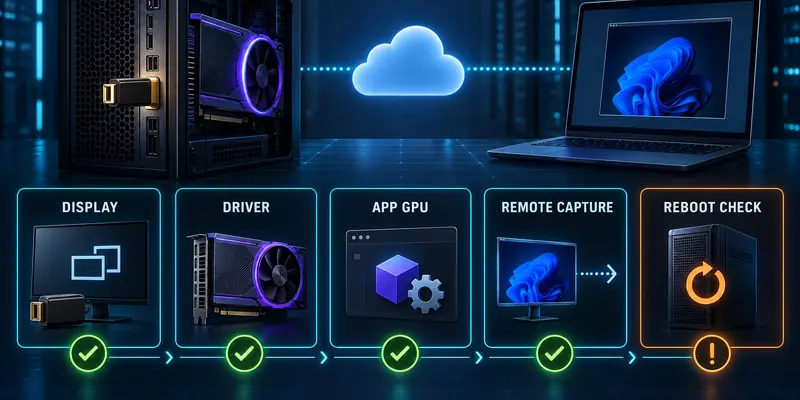
- Display enumeration: Settings > System > Display shows an active display with the expected resolution options.
- Driver path: Device Manager shows the intended GPU without a warning icon, and the vendor control panel opens against that adapter.
- Application path: the game, editor, 3D tool, or capture application reports the intended GPU rather than Microsoft Basic Render Driver or an integrated adapter.
- Remote path: the client receives the correct display surface at the expected aspect ratio, without a second invisible desktop stealing fullscreen windows.
- Reconnect behavior: a new remote session and a full reboot preserve the display mode. A one-time success immediately after plugging it in is not proof of persistence.
Practical pass condition: the same display, resolution, adapter, and capture target survive a reboot and a fresh remote connection. Record those four values before changing anything else.
Troubleshoot the common failure modes
No display appears after boot
Start with the physical path: power down, reseat the plug, remove any adapter or KVM, and try another output on the target GPU. Then use Settings > System > Display > Multiple displays > Detect. Microsoft also recommends checking cables, trying another video output, and reinstalling or rolling back a display driver when external display detection fails.
If Windows still sees nothing, inspect Device Manager and the hypervisor assignment. A dummy plug cannot compensate for a card that is not passed through, a disabled GPU, an incompatible driver, or a VM profile that exposes only a virtual adapter.
The screen is black or the remote client disconnects
Test at a conservative resolution and refresh rate offered by the plug. Temporarily remove HDR, custom timings, display scaling tools, and capture overlays. If the display returns after a graphics-driver reset, the issue may be driver state rather than the emulator itself. Windows documents Windows + Ctrl + Shift + B as a graphics-driver reset shortcut for some blank-screen cases.
The resolution you need is missing
The operating system can only select modes exposed by the emulator’s EDID or created by a supported virtual-display method. Try another plug profile or output if available, but do not assume a product’s marketing label guarantees every mode. For an ultrawide or creator workflow, a virtual display solution with a configurable EDID may be a better fit than a fixed, low-cost adapter.
The application still uses the wrong GPU
Check whether Windows has multiple display adapters and whether the remote protocol creates a separate session adapter. Confirm the GPU inside the application’s own diagnostics, not only in Device Manager. A headless display signal proves that a display is present; it does not prove that the application is rendering on the discrete GPU.
Input feels laggy after the plug is installed
The plug itself should not be treated as a network optimization. Check the Cloud PC region, wired versus Wi-Fi access, route quality, jitter, packet loss, encoder load, client decode time, and the selected stream bitrate. You can use our Cloud Gaming Network Readiness Test guide to separate display problems from network problems.
Cloud streaming versus RDP: do not mix the display models
Remote gaming tools and Windows Remote Desktop do not necessarily use the same graphics path. A game-streaming host may capture the emulated physical display, while RDP can create or select a session display and apply its own graphics policies. That is why a dummy plug can solve a missing-resolution problem in one workflow while appearing to do nothing in another.
Microsoft documents GPU acceleration and hardware encoding support for Remote Desktop Services on supported Windows Server and client configurations. It also documents a policy for using hardware graphics adapters for RDS sessions. Treat those settings as a separate RDP configuration task: verify the session renderer, hardware encoder, and application adapter after connecting.
If your main goal is Moonlight streaming, validate the host capture path first. If your main goal is remote administration, validate RDP’s session behavior first. If you need both, test them in separate sessions and record which display adapter each protocol reports.
For broader architecture context, our build-your-own Cloud Gaming PC guide covers the other layers that a dummy plug cannot address, including host hardware, operating system, and remote access design.
When a virtual display is the better answer
A physical dummy plug is attractive because it is inexpensive, easy to understand, and independent of a particular virtual-display driver. It is less attractive when you need several custom resolutions, multiple user sessions, hot-swappable displays, or a deployment with no accessible physical GPU port.
In those cases, evaluate a supported virtual display driver or the display mode recommended by your Cloud PC provider. Microsoft’s Indirect Display Driver model is designed for displays that are not connected to traditional GPU outputs, including remote-display scenarios, but the implementation and security policy are environment-specific.
Whichever path you choose, document the display identity, GPU driver version, remote client, resolution, and reboot behavior. That turns a fragile “it worked once” setup into a reproducible Cloud PC configuration.
FAQ
Will an HDMI dummy plug increase Cloud PC FPS?
Not by itself. It can make the intended display and resolution available, which may remove a configuration bottleneck, but FPS still depends on the GPU, game settings, driver, CPU, encoder, and workload.
Should the dummy plug go into the motherboard or the GPU?
Use an output on the GPU you want Windows and the application to use. A motherboard port can select integrated graphics or a different display adapter and defeat the purpose of the setup.
Can a dummy plug fix high ping or stream stutter?
No. It addresses display detection and available modes. High ping, jitter, packet loss, congestion, encoder load, and client decoding require separate troubleshooting.
Is a dummy plug required for every headless GPU server?
No. Some GPU, driver, hypervisor, Linux, and remote-display stacks support displayless operation. Use a dummy plug when your specific workflow needs an active display surface or stable EDID-backed modes.
Sources and disclosure
This is a configuration guide, not a hands-on test of a particular dummy-plug model or Cloud PC provider. Results vary with the GPU, emulator EDID, driver, hypervisor, operating system, remote protocol, network route, and application.
- Microsoft’s EDID documentation explains how display identity and capability data are presented to Windows and graphics components.
- Microsoft’s multiple-monitor guide documents Detect, display modes, and Windows + P behavior.
- Microsoft’s RDS graphics virtualization documentation covers GPU-accelerated rendering and remote encoding considerations.
- NVIDIA’s driver installation guide distinguishes compute-only headless installations from desktop-and-compute installations.