
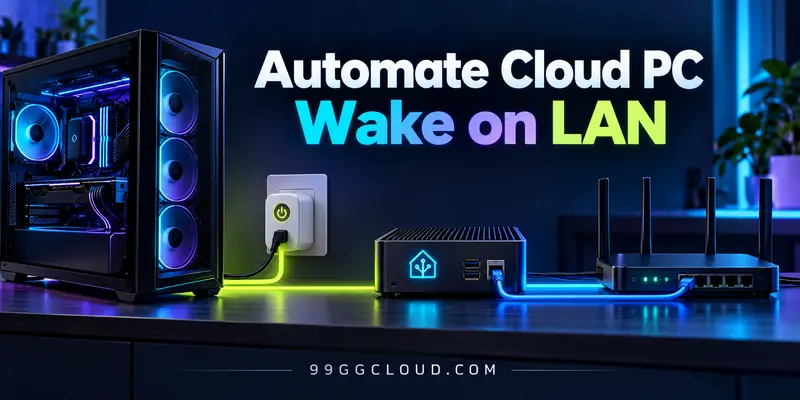
To Automate Cloud PC Wake on LAN, keep Home Assistant running on a separate device, restore power through a smart plug when needed, and send a local WoL packet to your gaming PC. Before disconnecting power, shut down the operating system and verify that shutdown completed.
This guide covers a physical PC you own and stream from. Rented cloud virtual machines usually require the provider’s start/stop controls; a home smart plug cannot manage their power.
Keep the controller outside the PC’s power path
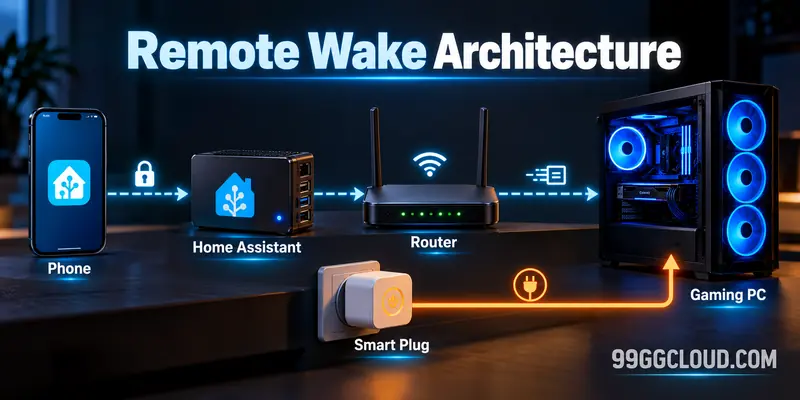
Your phone talks to Home Assistant through authenticated remote access. Home Assistant controls the plug and sends the magic packet from inside the PC’s LAN. Keep the router, Ethernet switch, and Home Assistant host powered independently.
Running your only automation controller on the gaming PC creates a dead end: once that PC is off, nothing remains to wake it. A separate always-on host avoids that dependency.
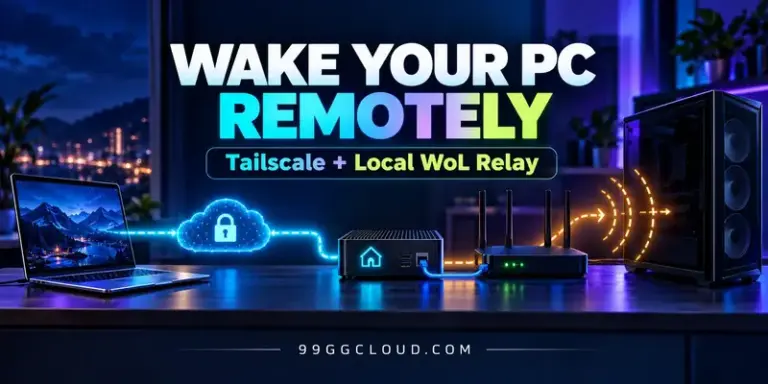
For remote control, use a VPN or Home Assistant Cloud rather than forwarding a WoL port to the internet. Home Assistant documents both options in its remote access guide. A routed VPN connection to your phone does not automatically carry Ethernet broadcasts; the local controller sends them.
New to the overall setup? Start with our guide to building your own cloud gaming PC.
Prepare the PC, smart plug, and network
Confirm wake support before automating
Use wired Ethernet and record the wired adapter’s MAC address. Reserve the PC’s IP address in your router so availability checks consistently target the correct machine.
In firmware, inspect settings such as Wake on LAN, PCIe wake, and energy-saving modes that remove standby power. Enable the adapter’s magic-packet wake setting where supported. Exact labels and supported sleep states depend on the motherboard, NIC, driver, and operating system.
Test sleep first, then shutdown. Microsoft’s Windows 10 WoL behavior documentation distinguishes sleep, explicit hibernation, and Fast Startup shutdown. It does not guarantee identical behavior on your Windows 11 hardware. Check your manufacturer’s documentation before relying on wake from shutdown.
Choose the plug by its actual capabilities
Check the exact model’s electrical rating, load suitability, Home Assistant support, and behavior after an outage. Prefer documented local control; a cloud-dependent plug adds another failure point. For example, the TP-Link integration documentation describes local access and authentication requirements for supported devices. That is not blanket compatibility for every plug.
A power-metering model can help distinguish idle from powered-off behavior, but you must measure your own system. Leave the plug on for ordinary sleep-and-wake operation: without AC power, the NIC cannot receive a wake packet.
After restoring AC, some PCs still cannot wake until booted once. An alternative is firmware’s “Power On” after AC loss: restoring the plug then boots the machine directly. ASUS documents this behavior; confirm your board’s implementation. It is a separate startup mechanism from WoL.
Automate Cloud PC Wake on LAN with Home Assistant
Add your plug’s supported integration under Settings → Devices & services. Rename its switch to something recognizable, then verify that toggling it works while the PC is already shut down.
Add the Wake on LAN integration with the wired MAC address and correct LAN broadcast address. Its button sends a packet but does not confirm that the computer started. Add the Ping integration separately for reachability, allowing ICMP on the trusted LAN where necessary.
Create a script in Settings → Automations & scenes → Scripts, open its YAML editor, and adapt this example. Replace all three entity IDs with your actual entities. Timing values are starting points, not measured boot guarantees.
alias: Wake gaming PC
mode: single
sequence:
  - condition: template
    value_template: "{{ states('switch.gaming_pc_plug') in ['on', 'off'] }}"
  - if:
      - condition: state
        entity_id: switch.gaming_pc_plug
        state: "off"
    then:
      - action: switch.turn_on
        target:
          entity_id: switch.gaming_pc_plug
      - wait_template: "{{ is_state('switch.gaming_pc_plug', 'on') }}"
        timeout: "00:00:30"
        continue_on_timeout: false
      - delay: "00:00:10"
  - repeat:
      count: 3
      sequence:
        - action: button.press
          target:
            entity_id: button.gaming_pc_wake
        - delay: "00:00:05"
  - wait_template: "{{ is_state('binary_sensor.gaming_pc_ping', 'on') }}"
    timeout: "00:03:00"
    continue_on_timeout: false
The script rejects an unknown plug state, restores AC only when needed, sends three wake requests, and stops on a reachability timeout. The PC, Home Assistant, and packet sender must share a network path that permits WoL; container networking or VLAN isolation may need configuration.
The example uses Home Assistant’s documented script conditions, waits, and repeats. Single script mode prevents overlapping runs of this script. Ping success confirms network reachability, not that the streaming service is ready.
Shut down cleanly before disconnecting AC
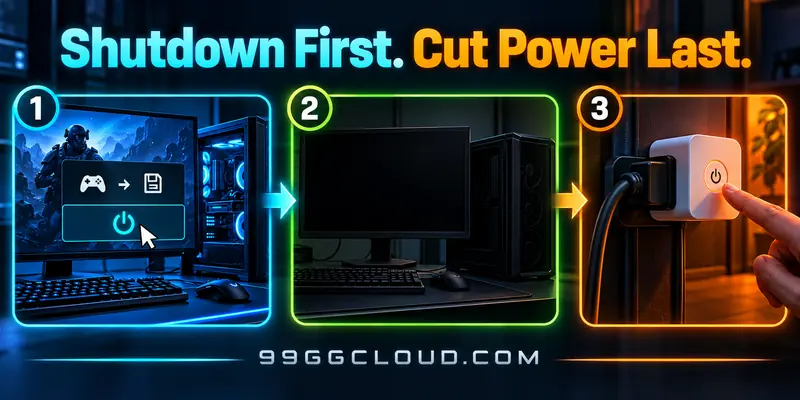
WoL provides no universal shutdown command. Configure an authenticated operating-system shutdown path first, using a supported host integration or a restricted management account. Keep its access private and credentials outside published YAML.
On Windows, shutdown /s /t 0 requests immediate shutdown on the machine executing it. It does not remotely authenticate itself. Avoid adding /f casually: forcing applications closed can discard unsaved work. See Microsoft’s shutdown command reference.
A Linux management path can invoke a narrowly authorized poweroff command over SSH. Home Assistant’s Shell Command integration documents its execution environment and limitations. SSH keys, host verification, and permissions must be configured for that environment.
- End the streaming session, save work, and stop game servers gracefully.
- Send the OS shutdown request through your configured management path.
- Verify completion using a tested out-of-band power-state signal or supervised local confirmation.
- Optionally turn the plug off after confirmed shutdown. If confirmation is missing, leave it on.
Loss of ping is not proof of shutdown: a firewall, sleep state, network failure, or crash produces the same symptom. Low wattage alone can also mean sleep. Power readings are supporting evidence only after you characterize those states locally.
Keep forced power cycling as a separate, deliberate recovery action. Do not attach it to a failed wake timeout or a routine idle timer.
Add schedules and session-aware automation
Once manual wake works, attach the script to a dashboard button or time-based automation. For a scheduled gaming session, trigger early enough for your observed boot time, then check the streaming host independently before connecting.
To schedule startup in the automation editor, add a Time trigger, choose your session’s preparation time, and select the wake script as the action. Check Home Assistant’s configured time zone. Test the automation once while you are beside the PC, then repeat from your remote connection before trusting it for a scheduled stream.
For shutdown, require an explicit session-ended signal and checks that backups, downloads, recordings, and server processes are finished. Low CPU usage or low plug wattage cannot reliably identify an idle gamer or an unattended render.
Use one coordinator for wake and shutdown requests so two independent scripts cannot fight over power. Add a maintenance override helper, log automation decisions, and route failures to a notification. After Home Assistant restarts, reconcile current states rather than assuming a previous timer completed.
Validate locally before depending on remote access
- Wake from sleep, from supported shutdown, and after AC restoration.
- Check BIOS AC-restore behavior against your intended startup path.
- Confirm a failed ping never causes automatic power removal.
- Test an unavailable plug, disconnected Ethernet, and controller restart.
- Verify the streaming service becomes ready after boot without local intervention.
If wake fails, start with the physical power state and wired MAC, then inspect NIC wake settings and LAN broadcast delivery. Our remote gaming PC WoL setup guide provides additional setup context.
This is a documentation-based configuration guide, not a hands-on benchmark. No startup time, energy savings, or model-specific reliability is claimed. Hardware behavior and shutdown confirmation must be validated on your installation before unattended power removal.